Diagrams illustrate command behaviour; they do not run Rhino or AutoCAD.
Document sequence
From document inspection to prepared output.
Complex documents contain fragments, nested objects, inconsistent layers, heavy meshes and downstream quantity or export requirements. The commands inspect, clean, analyse and prepare those conditions for the next output step.
Inspect geometry
↓
Clean and audit
↓
Extract quantities
↓
Prepare output
01
Make2D cleanup
make 2d cleaner v3.py
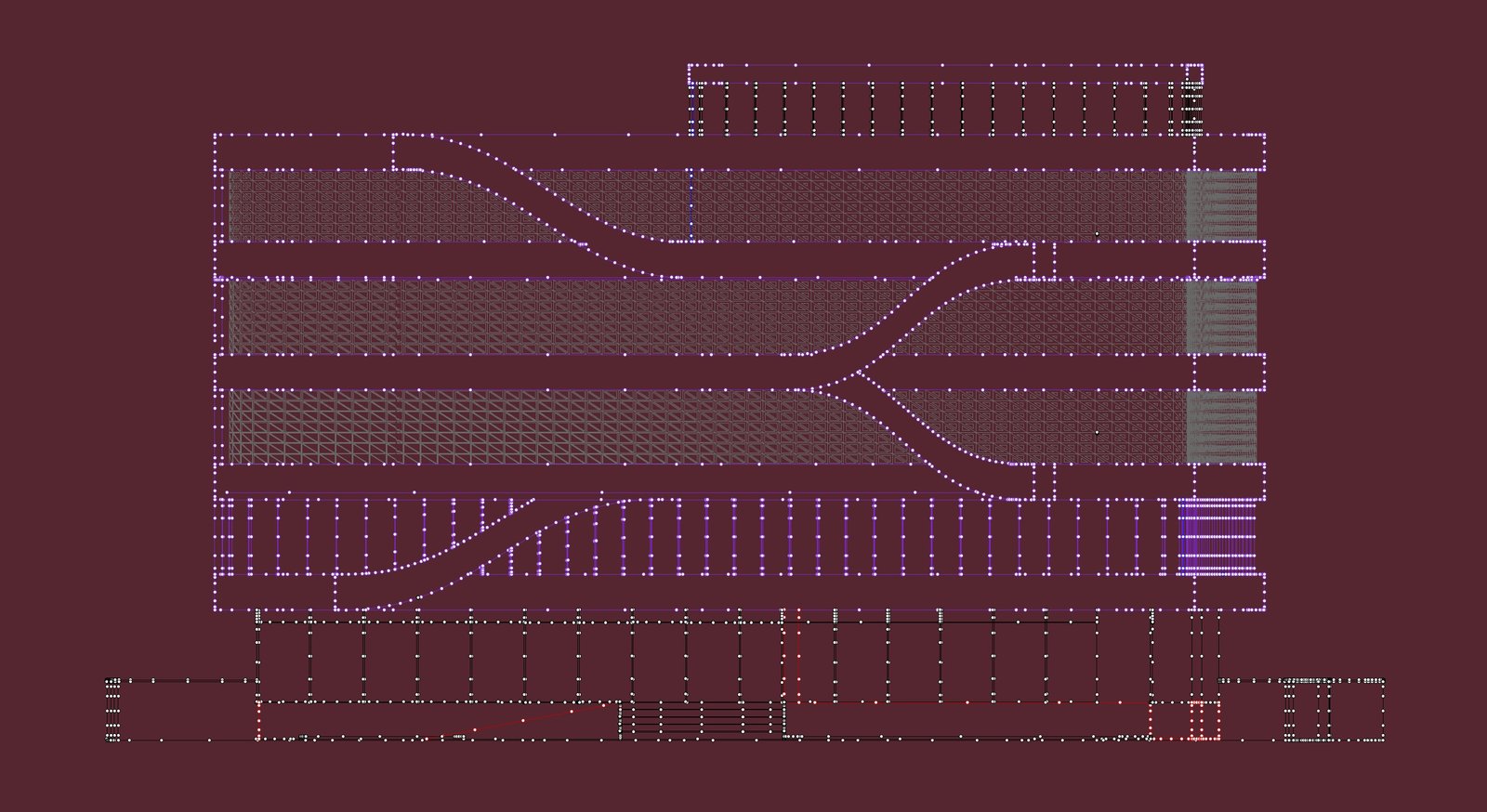
This command removes duplicate segments, merges collinear runs and joins near-endpoints in Make2D output.
Drag the divider; click the drawing to show or hide anchor points.
Make2D command / from fragments to drawing-ready output
01
01 / 02
Before command
The raw Make2D result contains overlapping, fragmented and difficult-to-audit linework.
Input condition / fragmented curves
Make2D processing graph
Make2D curvesraw segments, overlaps and near-endpoints
Snap + mergecoincident and collinear geometry
Join + deduplicateremove fragments and repeated lines
Clean lineworkjoined curves ready for drafting
02
Audit suite
File / Layer / Material / Block Auditors
These commands scan a Rhino document for empty layers, duplicate names, unused blocks and degenerate geometry. Each auditor runs independently and reports its findings or fixes.
Click a row to run it; click again to reset.
Document audit47 issues remaining
Empty layers12 found
Duplicate names18 found
Unused blocks9 found
Degenerate geometry8 found
Audit suite processing graph
Rhino documentlayers, blocks, materials and objects
Scan conditionsempty layers, duplicate names and unused blocks
Audit reportissue counts, checked rows and resettable fixes
03
Heavy object finder
heavy item sel.py
Ranks document objects by geometric cost using face and vertex counts. Set a threshold to select heavier objects, or click rows to select them individually.
Drag the threshold to filter the list; click a row to select or clear an object.
Rank by geometric cost0 selected . 0 faces
lightheavy
Heavy object finder processing graph
Document objectsmeshes, faces, vertices and object types
Score geometryweight objects by geometric cost
Rank + thresholdmark heavy objects above the selected limit
Selection setflagged objects and face-count readout
View exporter
views exporter.py
Select named views from a thumbnail grid, set the format, resolution, suffix and destination, then export them in a batch. A results dialog lists saved files, failures and elapsed time.
Select the views to export, then click Export.
selected 6/6exported 0elapsed 0.0s
0 of 0 views exportedExports/
View exporter processing graph
Named viewsselected thumbnails, format and destination
Render queueresolution multiplier and batch ordering
Export + verifysave files and measure completion state
Image settimestamped files, result dialog and elapsed time
View Exporter command A Rhino-native recording of the batch view export workflow: choose named views, set the output parameters, export the image set and review the completion result.
XLine construction
xlines.py
Places infinite construction lines through selected points along a chosen axis or custom direction. It creates an _Construction layer and stays active until Escape, so you can lay out a grid without restarting.
Choose an axis, then click the canvas to place a line.
lines 0points 0layer _Construction
XLine construction processing graph
Pick pointsaxis, custom direction and repeated clicks
Generate vectorsconstruct infinite lines from the chosen direction
Manage layercreate and maintain the _Construction layer
Construction gridpersistent XLines until clear or Escape